GGG

close



Apr 28, 2024
- Join DateDec 2011
- LocationDurham, UK
- Posts:120,439
-
Likes:7,142
-
Liked:17,003 Times in 12,221 Posts
Quote:
Or is this Moderators Only...?
All members can enlarge their photos.Originally Posted by keestanis
Much obliged for that Graham; Would you tell us one more time how to do it ourselves?Or is this Moderators Only...?
1. select your post with the thumbnail
2. click on the image to open full size
3. edit - copy (the image is now on your clipboard)
4. close the image
5. click on the black edit button at the bottom of the post
6. click in the text where you want to insert the image
7. edit - paste
You then get a full size image as I did with your thumbnail.
NOTE: this works with Internet Explorer and Firefox but not with Google Chrome.
Graham

giandanielxk8
Veteran Member
close
Yesterday
- Join DateOct 2012
- LocationPuerto Rico
- Posts:3,755
-
Likes:1,170
-
Liked:1,619 Times in 873 Posts
Quote:
1. select your post with the thumbnail
2. click on the image to open full size
3. edit - copy (the image is now on your clipboard)
4. close the image
5. click on the black edit button at the bottom of the post
6. click in the text where you want to insert the image
7. edit - paste
You then get a full size image as I did with your thumbnail.
NOTE: this works with Internet Explorer and Firefox but not with Google Chrome.
Graham
What about Safari?Originally Posted by GGG
All members can enlarge their photos.1. select your post with the thumbnail
2. click on the image to open full size
3. edit - copy (the image is now on your clipboard)
4. close the image
5. click on the black edit button at the bottom of the post
6. click in the text where you want to insert the image
7. edit - paste
You then get a full size image as I did with your thumbnail.
NOTE: this works with Internet Explorer and Firefox but not with Google Chrome.
Graham

JaguarXKR
Senior Member
close

Feb 25, 2026
- Join DateAug 2010
- LocationIllinois / Wisconsin
- Posts:883
-
Likes:138
-
Liked:63 Times in 48 Posts
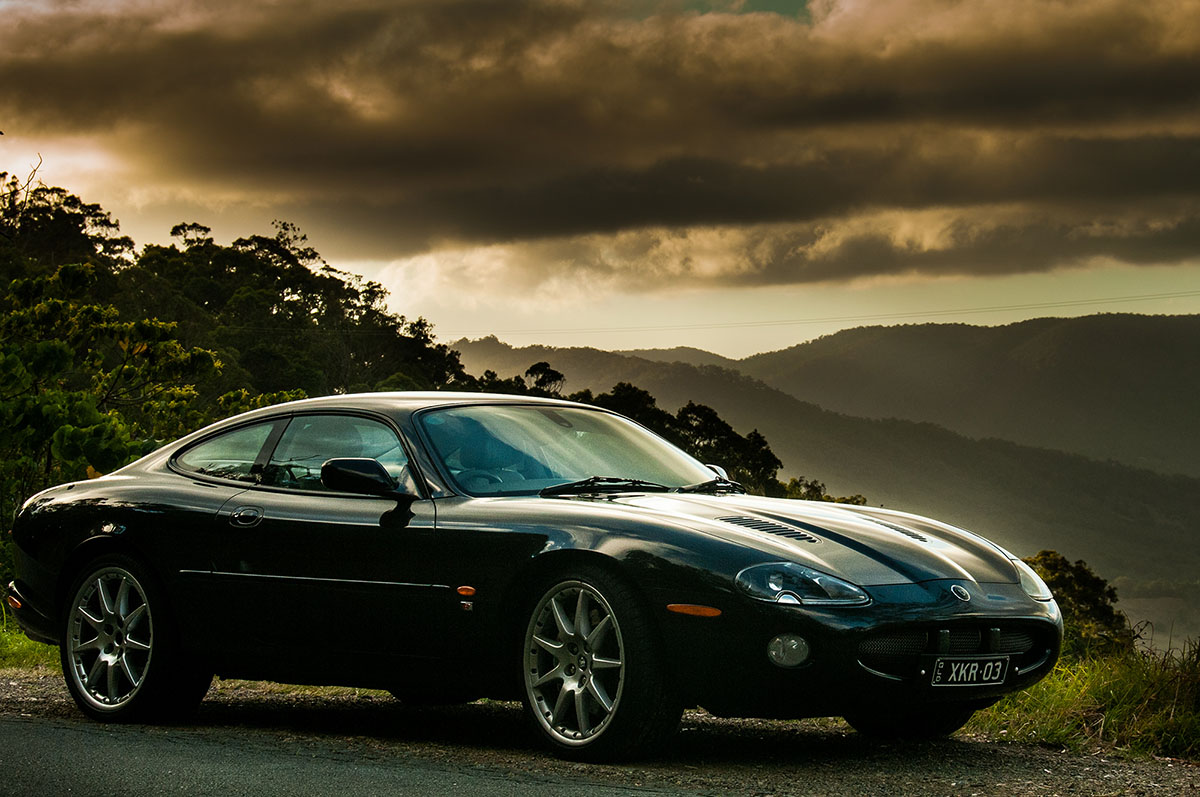
Here is a link to my Photobucket.
Mike_Ciupke's's Library | Photobucket
Mike_Ciupke's's Library | Photobucket

GGG
close
Apr 28, 2024
- Join DateDec 2011
- LocationDurham, UK
- Posts:120,439
-
Likes:7,142
-
Liked:17,003 Times in 12,221 Posts
Quote:
Mike_Ciupke's's Library | Photobucket
Mike,Originally Posted by JaguarXKR
Here is a link to my Photobucket.Mike_Ciupke's's Library | Photobucket
I've pulled one image from your Photobucket set for members who have limited connectivity to see.
Graham


GGG
close
Apr 28, 2024
- Join DateDec 2011
- LocationDurham, UK
- Posts:120,439
-
Likes:7,142
-
Liked:17,003 Times in 12,221 Posts
Quote:

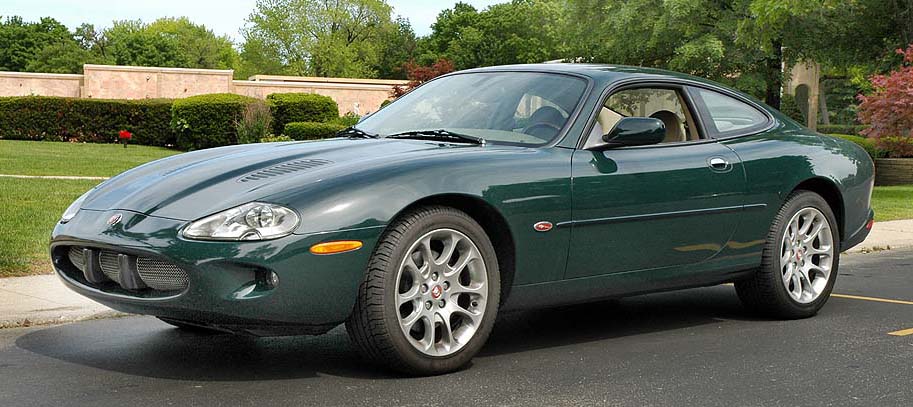
Paul,Originally Posted by Paul Pavlik
I always like to admire this one - the perfect leveling job.
Graham
GGG
close
Apr 28, 2024
- Join DateDec 2011
- LocationDurham, UK
- Posts:120,439
-
Likes:7,142
-
Liked:17,003 Times in 12,221 Posts
Quote:

Your linked image won't open for me ..........Originally Posted by JaguarXKR
Graham
JaguarXKR
Senior Member
close
Feb 25, 2026
- Join DateAug 2010
- LocationIllinois / Wisconsin
- Posts:883
-
Likes:138
-
Liked:63 Times in 48 Posts
Quote:
Graham
Hmm... maybe its my computer. I will try again. Thanks for letting me know.Originally Posted by GGG
Your linked image won't open for me ..........Graham
Thanks



Junior Member
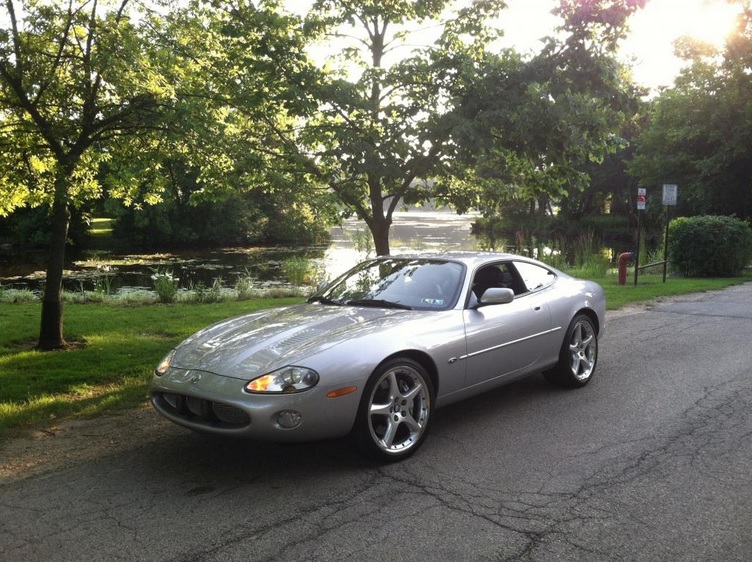
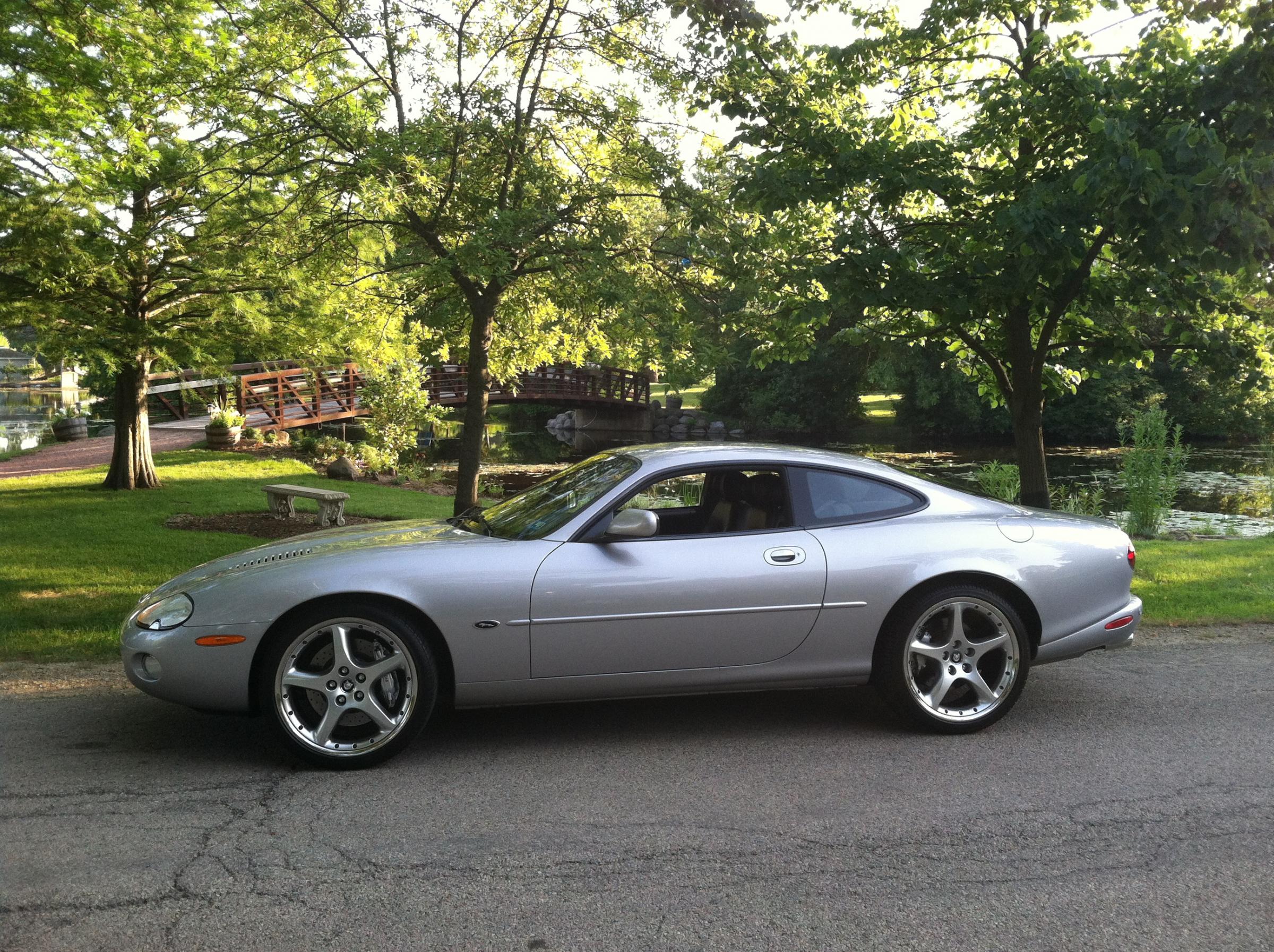
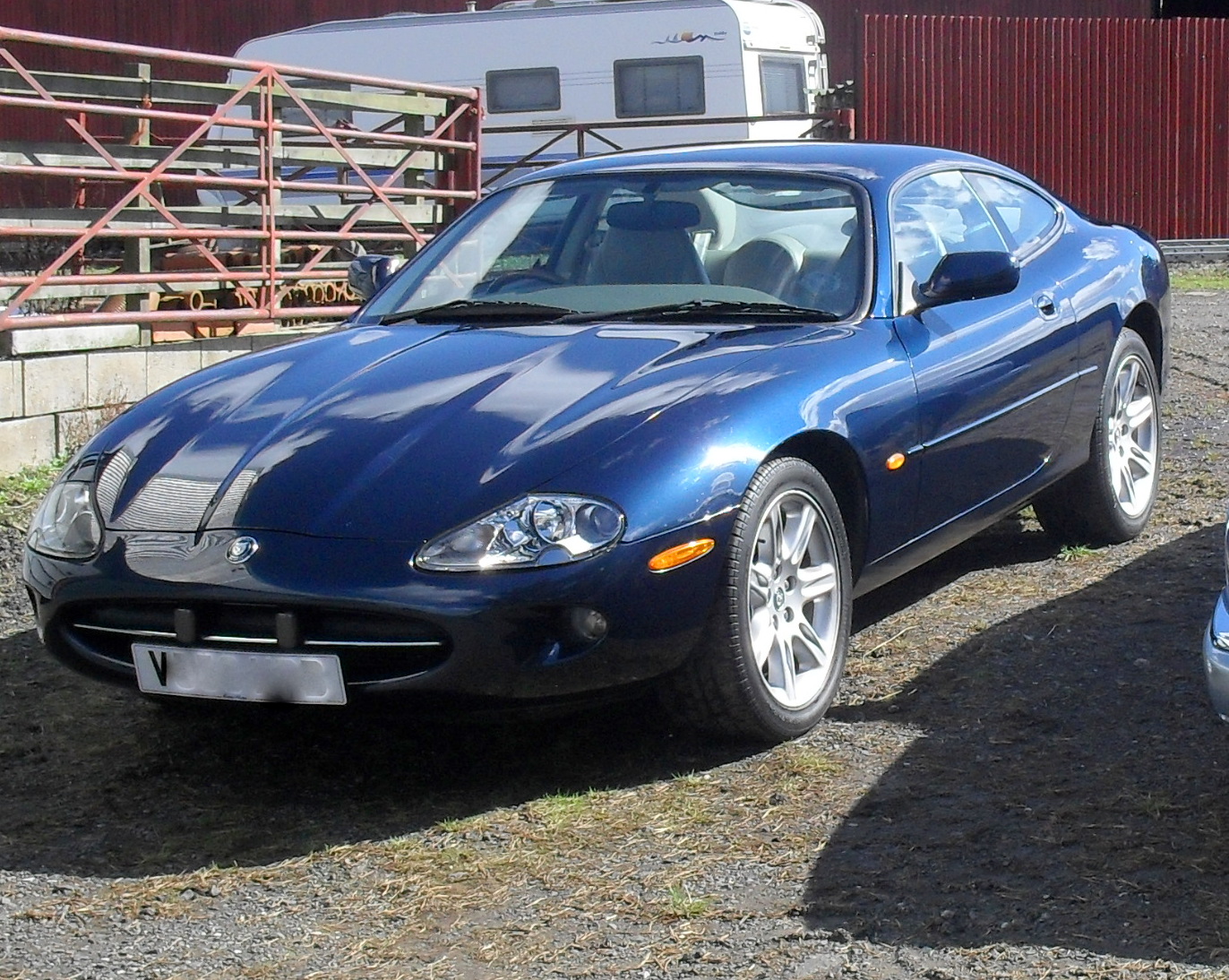
I'm not sure if I've done this right, but I'm trying to share some pictures by putting the links here. If the pictures don't show up, can someone tell me how to do this? I clicked on the icon that shows a mountain and sun, and pasted the dropbox link into the dialogue box.


[IMG]https://www.dropbox.com/sh/5rbb16pfkvibfnr/soWWgTMmtm/ug_800.jpg
[/IMG]https://www.dropbox.com/sh/5rbb16pfkvibfnr/1GM0M83VfC/pQ_800.jpg
[IMG]https://www.dropbox.com/sh/5rbb16pfkvibfnr/SJr951-TVE/oA_800.jpg
[IMG]https://www.dropbox.com/sh/5rbb16pfkvibfnr/soWWgTMmtm/ug_800.jpg
[/IMG]https://www.dropbox.com/sh/5rbb16pfkvibfnr/1GM0M83VfC/pQ_800.jpg
[IMG]https://www.dropbox.com/sh/5rbb16pfkvibfnr/SJr951-TVE/oA_800.jpg
giandanielxk8
Veteran Member
close
Yesterday
- Join DateOct 2012
- LocationPuerto Rico
- Posts:3,755
-
Likes:1,170
-
Liked:1,619 Times in 873 Posts
Quote:


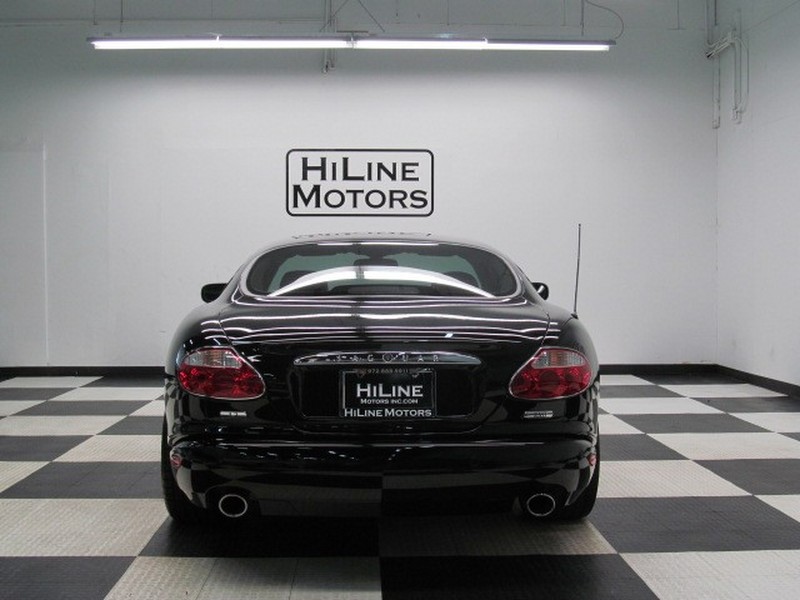
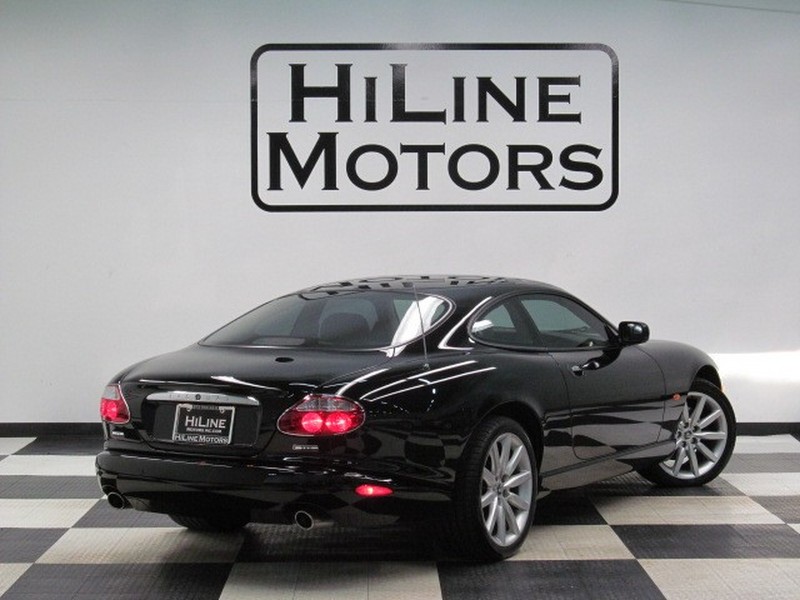
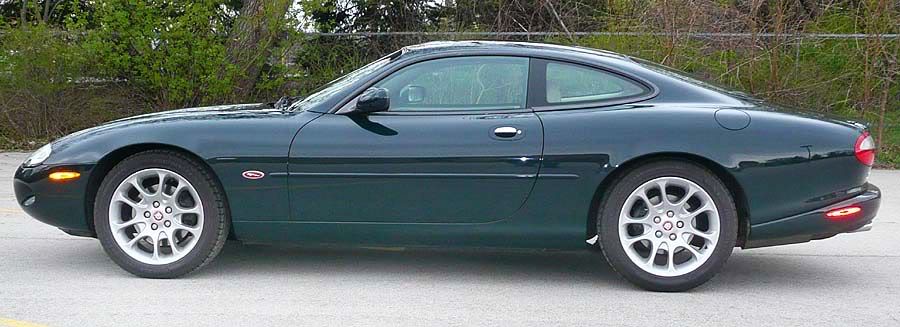
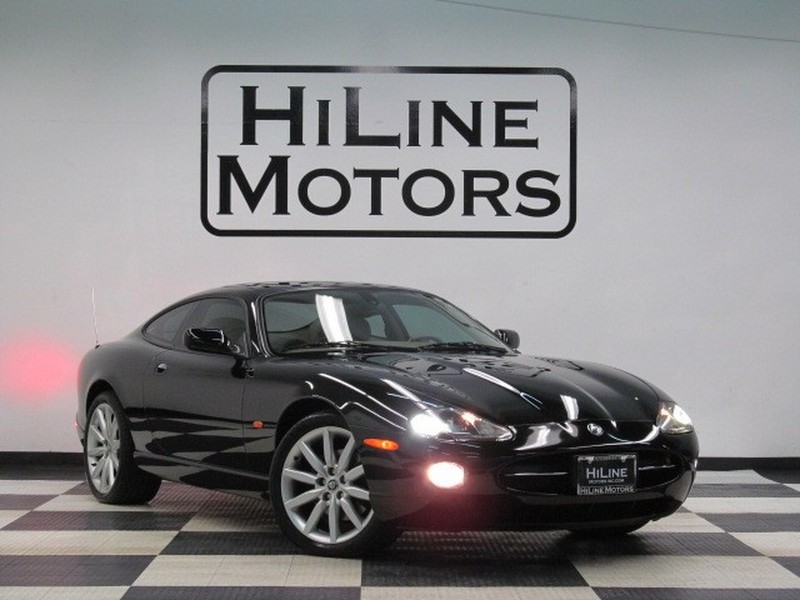
Let's see. I followed the link to your dropbox and downloaded the images and then individually attached them. I'm guessing you didn't set to publicly share them on dropbox. So I guess I have saved you the trouble!Originally Posted by gabefasolino
I'm not sure if I've done this right, but I'm trying to share some pictures by putting the links here. If the pictures don't show up, can someone tell me how to do this? I clicked on the icon that shows a mountain and sun, and pasted the dropbox link into the dialogue box.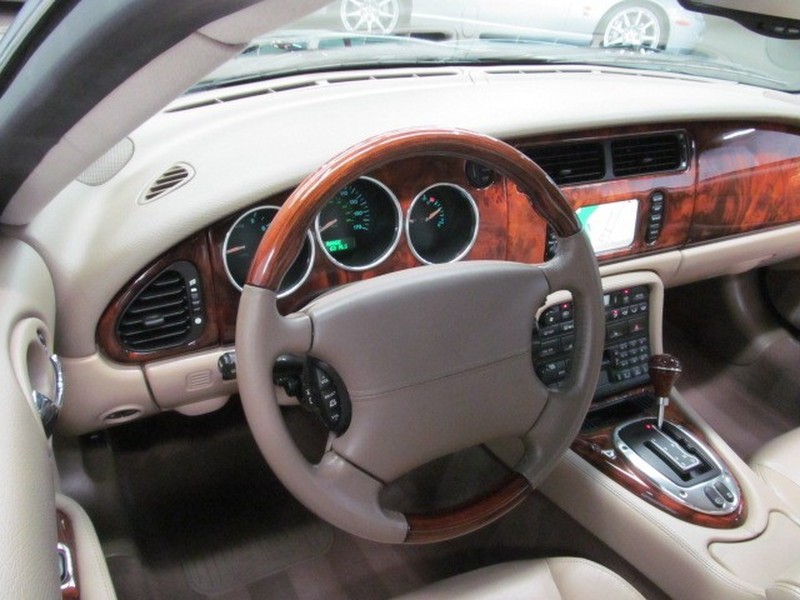

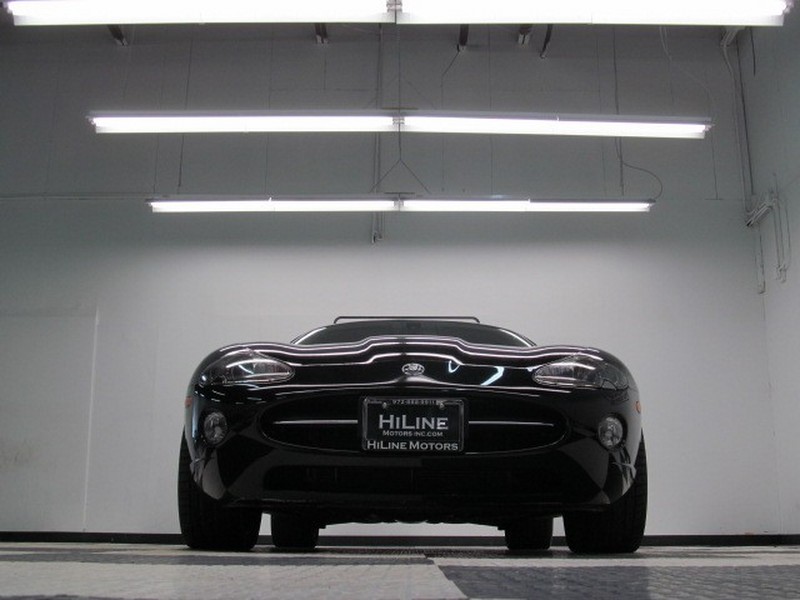
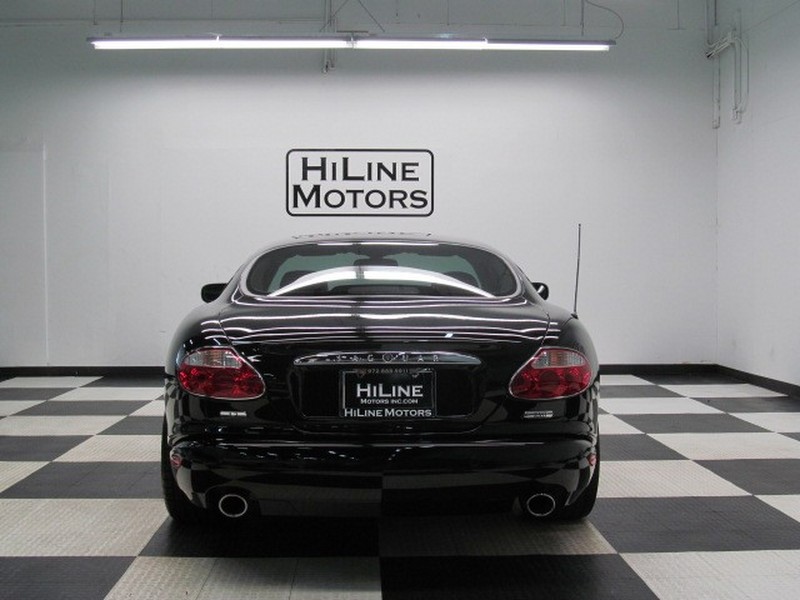
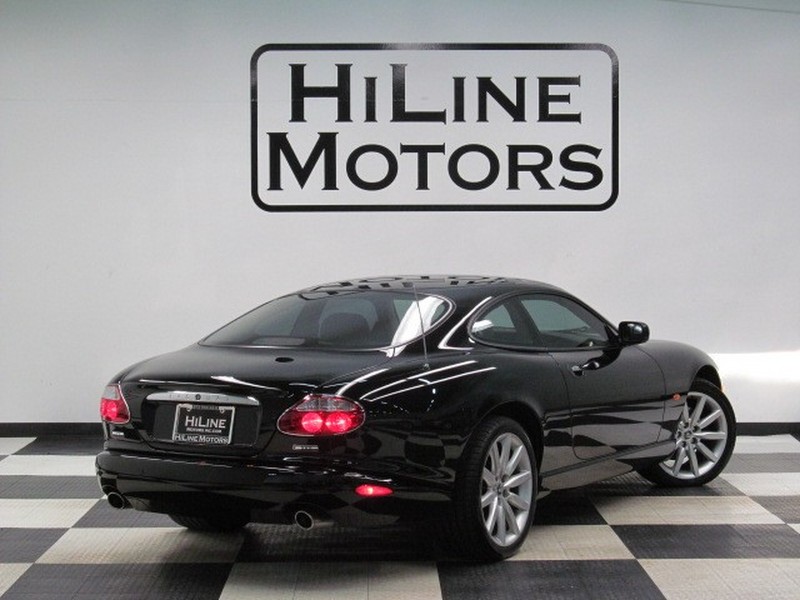
Junior Member
Quote:
Thanks GiandanielXK8. Still not showing up. I've looked for a place where I can attach them to the Forum, but didn't find it. Can you point it out to me please?Originally Posted by giandanielxk8
Let's see. I followed the link to your dropbox and downloaded the images and then individually attached them. I'm guessing you didn't set to publicly share them on dropbox.
giandanielxk8
Veteran Member
close
Yesterday
- Join DateOct 2012
- LocationPuerto Rico
- Posts:3,755
-
Likes:1,170
-
Liked:1,619 Times in 873 Posts
Quote:
You can't see them after my fiddling about? Well, the easiest way is using the attachment's feature of the forum instead of uploading to a third party site. Post 16 by Graham details it nicely: Originally Posted by gabefasolino
Thanks GiandanielXK8. Still not showing up. I've looked for a place where I can attach them to the Forum, but didn't find it. Can you point it out to me please?
Quote:
1. click on the Edit button
2. click on the Advanced button

3. click on the Paper Clip icon
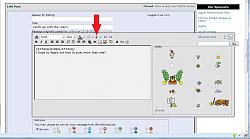
4. click on Manage Attachments

5. either upload from your PC etc by clicking on the Browse button (circled in red) to navigate to the file location and then clicking on the Upload button (circled in red) OR for online storage, type in the URL (arrowed in blue) then click on the Upload button (circled in blue).

It will have taken you longer to read this than it will to upload another photo!
Graham
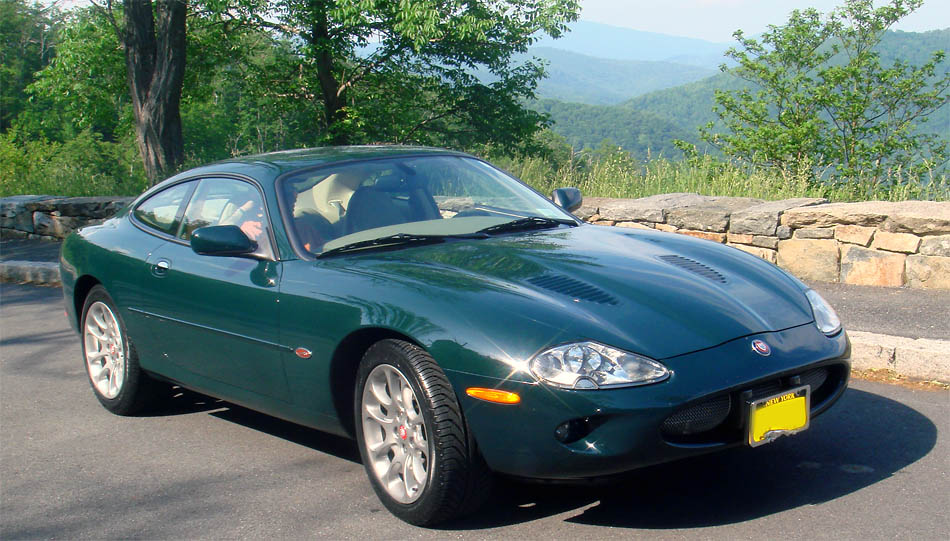
Lovely coupe, btw.Originally Posted by GGG
To add more than one photo:1. click on the Edit button
2. click on the Advanced button
3. click on the Paper Clip icon
4. click on Manage Attachments
5. either upload from your PC etc by clicking on the Browse button (circled in red) to navigate to the file location and then clicking on the Upload button (circled in red) OR for online storage, type in the URL (arrowed in blue) then click on the Upload button (circled in blue).
It will have taken you longer to read this than it will to upload another photo!
Graham






Senior Member
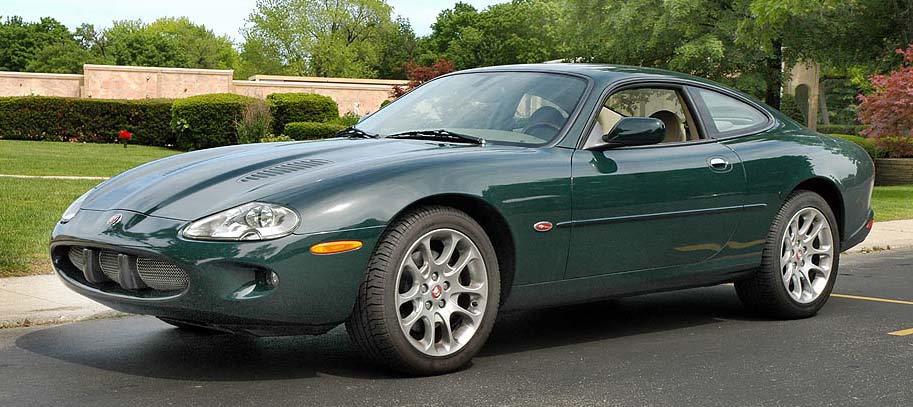
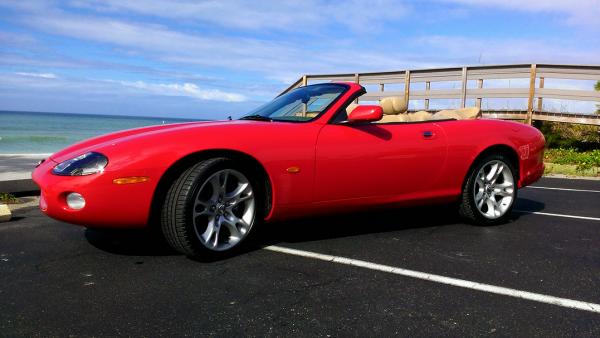
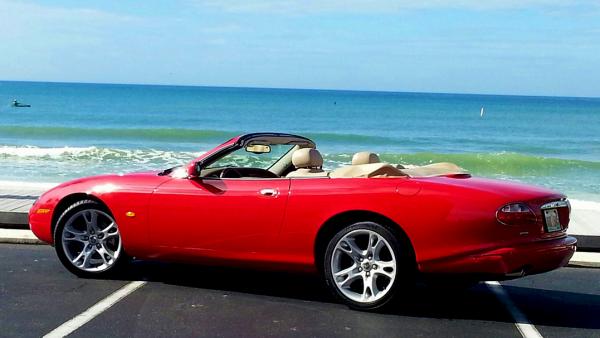
Browsing through a 2007 Dutch car magazine I came across some familiar eye candy; The XK8 was elected to be the most wanted classic car in a few decades by the Royal Dutch Car Society...! (KNAC)