


Full Jaguar EPC Download, with complete install instructions.


Veteran Member


Joined: Aug 2010
Posts: 2,636
Likes: 1,636
From: Southington CT

Update - 4/24/14 See Post# 75 - has updated JEPC file that supercedes this Post - Now the JEPC download is only 1 file to download and install has been made easier.
Update: see post# 54 - new files and instructions.
Deleted this post. I will create new post that covers downloading 2 new archive files for JEPC (JEPC.exe that will create C:\JEPC folder and jepcv3.exe will create C\jepcv3 folder).
Jim Lombardi
Update: see post# 54 - new files and instructions.
Deleted this post. I will create new post that covers downloading 2 new archive files for JEPC (JEPC.exe that will create C:\JEPC folder and jepcv3.exe will create C\jepcv3 folder).
Jim Lombardi
Last edited by jimlombardi; Apr 24, 2014 at 01:32 PM.

Veteran Member
Joined: Jun 2013
Posts: 8,913
Likes: 4,722
From: USA
Sean
The reason you and the rest of us are not getting full access to the features of the JEPC (that require the internet connection) is that you need to be automobile repair facility who has a paid subscription to the JEPC for online access support.
Below the page banner "The New Jaguar EPC " are the internet online access that only work with a valid JEPC subscription logon and password:
such as Search, VIN Search, and VIN ID --- also the following on menu line above these:
Price Admin Advanced Search Dealer Notes View PIB View My Customers
One of the Jaguar Forum members provided the JEPC software in this forum thread, but login/password provided to access the software, but are not valid for the online JEPC services.
We are using this software to find part numbers & illustrations showing those parts that we are interested in finding.
Then we use the part number and part description to locate them online or somewhere else and this allows to shop for the best price for parts.
Jim Lombardi
The reason you and the rest of us are not getting full access to the features of the JEPC (that require the internet connection) is that you need to be automobile repair facility who has a paid subscription to the JEPC for online access support.
Below the page banner "The New Jaguar EPC " are the internet online access that only work with a valid JEPC subscription logon and password:
such as Search, VIN Search, and VIN ID --- also the following on menu line above these:
Price Admin Advanced Search Dealer Notes View PIB View My Customers
One of the Jaguar Forum members provided the JEPC software in this forum thread, but login/password provided to access the software, but are not valid for the online JEPC services.
We are using this software to find part numbers & illustrations showing those parts that we are interested in finding.
Then we use the part number and part description to locate them online or somewhere else and this allows to shop for the best price for parts.
Jim Lombardi
Thank you and understood, however, when I select a part, any part, there are no illustrations displaying, I can drill down to specific parts but no matter which part I select, no illustrations. Apologies for being a pain.
Veteran Member
Joined: Aug 2010
Posts: 2,636
Likes: 1,636
From: Southington CT
Update - 4/24/14 See Post# 75 - has updated JEPC file that supercedes this Post - Now the JEPC download is only 1 file to download and install has been made easier.
Update: see post# 54 - new files and instructions.
Deleted this post. I will create new post that covers downloading 2 new archive files for JEPC (JEPC.exe that will create C:\JEPC folder and jepcv3.exe will create C\jepcv3 folder).
Jim Lombardi
Update: see post# 54 - new files and instructions.
Deleted this post. I will create new post that covers downloading 2 new archive files for JEPC (JEPC.exe that will create C:\JEPC folder and jepcv3.exe will create C\jepcv3 folder).
Jim Lombardi
Last edited by jimlombardi; Apr 24, 2014 at 01:31 PM.
Veteran Member
Joined: Jun 2013
Posts: 8,913
Likes: 4,722
From: USA
Hi
I repeat what I think that the issue is a bad download of the jepc software.
Use the install instructions in post# 35 - also use the download links in post# 35.
I found the images folder for JEPC software on my PC - look for this folder on your computer:
C:\JEPC\applications\JEPC\flash\images
It has all the images for the drill-down parts listed.
Jim Lombardi
I repeat what I think that the issue is a bad download of the jepc software.
Use the install instructions in post# 35 - also use the download links in post# 35.
I found the images folder for JEPC software on my PC - look for this folder on your computer:
C:\JEPC\applications\JEPC\flash\images
It has all the images for the drill-down parts listed.
Jim Lombardi
Thanks I thought I did reinstall from post #35 but will do again. there are only 29 images in my image folder so at least I know the problem. I will retry.
Veteran Member
Joined: Jun 2013
Posts: 8,913
Likes: 4,722
From: USA
Downloaded again, no issues. Here is what I see (or don't see). The images are in the folder -

You are not alone, I have the same issue. Windows 7, 64 bit.
Veteran Member
Joined: Aug 2010
Posts: 2,636
Likes: 1,636
From: Southington CT
Update - 4/24/14 See Post# 75 - has updated JEPC file that supercedes this Post - Now the JEPC download is only 1 file to download and install has been made easier.
Update: see post# 54 - new files and instructions.
Deleted this post. I will create new post that covers downloading 2 new archive files for JEPC (JEPC.exe that will create C:\JEPC folder and jepcv3.exe will create C\jepcv3 folder).
Jim Lombardi
Update: see post# 54 - new files and instructions.
Deleted this post. I will create new post that covers downloading 2 new archive files for JEPC (JEPC.exe that will create C:\JEPC folder and jepcv3.exe will create C\jepcv3 folder).
Jim Lombardi
Last edited by jimlombardi; Apr 24, 2014 at 01:28 PM.

Senior Member
Joined: Jan 2013
Posts: 296
Likes: 43
From: Charleston SC
Same issue. Windows 7 64 bit.
All of the 5660 files are in the image folder.
Had no problems with installation and short cut creation.
Sorry I am having these issues too. I know Jim and others have worked hard to make this work.
Veteran Member
Joined: Aug 2010
Posts: 2,636
Likes: 1,636
From: Southington CT
Update: see post# 54 - new files and instructions.
Deleted this post. I will create new post that covers downloading 2 new archive files for JEPC (JEPC.exe that will create C:\JEPC folder and jepcv3.exe will create C\jepcv3 folder).
Jim Lombardi
Deleted this post. I will create new post that covers downloading 2 new archive files for JEPC (JEPC.exe that will create C:\JEPC folder and jepcv3.exe will create C\jepcv3 folder).
Jim Lombardi
Last edited by jimlombardi; Apr 18, 2014 at 01:52 AM.
Senior Member
Joined: Jan 2013
Posts: 296
Likes: 43
From: Charleston SC
Quote:
Originally Posted by Ericbilt25 View Post
"Thank you, but it keeps telling me this: Authentication Failed
when i type in ADMIN and password: 123"
Here is what I did that solved the problem for me. I will admit that as computer savvy as I am I do not quite understand this.
I extracted the folder to the desktop as previously described.
I opened that extracted folder, now called Jaguar Epc v3 10.2009, and COPIED (notice I did not say CUT or MOVED - I tried that and it did not work) two folders inside called JEPC and jepcv3.
I then pasted those two folders to my "C:" drive.
At that point the short cut in the extracted desktop folder named Jaguar Epc v3 10.2009 automatically changed it's icon AND assigned itself the correct path. I did not have to alter the shortcut in any form.
I copied that shortcut and pasted it to the desk top.
All things now seem to work.
FYI, I did this on a XP Service Pack 3 and a Windows 7 computer.
I do not know why on my machines I had to copy the files instead of just moving them. I also don't know if the original extracted file, or any of the files within, can be deleted. I am leaving them alone for now.
I know that different computers can be set up different ways and thus things install, extract, etc. differently. The above worked for me but . . . .
Good luck and thanks to all.
Originally Posted by Ericbilt25 View Post
"Thank you, but it keeps telling me this: Authentication Failed
when i type in ADMIN and password: 123"
I extracted the folder to the desktop as previously described.
I opened that extracted folder, now called Jaguar Epc v3 10.2009, and COPIED (notice I did not say CUT or MOVED - I tried that and it did not work) two folders inside called JEPC and jepcv3.
I then pasted those two folders to my "C:" drive.
At that point the short cut in the extracted desktop folder named Jaguar Epc v3 10.2009 automatically changed it's icon AND assigned itself the correct path. I did not have to alter the shortcut in any form.
I copied that shortcut and pasted it to the desk top.
All things now seem to work.
FYI, I did this on a XP Service Pack 3 and a Windows 7 computer.
I do not know why on my machines I had to copy the files instead of just moving them. I also don't know if the original extracted file, or any of the files within, can be deleted. I am leaving them alone for now.
I know that different computers can be set up different ways and thus things install, extract, etc. differently. The above worked for me but . . . .
Good luck and thanks to all.
Senior Member
Joined: Jan 2013
Posts: 296
Likes: 43
From: Charleston SC
As further comment, in extracted file there is a readme doc that says:
"copy the 2 folders listed here to the c drive.. then copy the shortcut to your desktop..
---------------//---------------
.....Folders.....
JEPC
jepcv3
---------------//---------------
it doesn't get ANY easier then this.
---------------//---------------
login information:
User: ADMIN
Pass: 123
---------------//---------------"
I also remember reading in Post # 1 about the copying to C: drive.
I am suspecting that there is some code in the process that makes the program work better (or for some, only work) if the program folders are in the C: drive.
I do find it interesting that by doing it the way that I described (and in the readme doc) the shortcut creates itself, assigns the icon, and assigns the proper pathway to the program file.
For those that this works for great. And to all who have contributed: Thanks!
Veteran Member
Joined: Aug 2010
Posts: 2,636
Likes: 1,636
From: Southington CT
Update - 4/24/14 See Post# 75 - has updated JEPC file that supercedes this Post - Now the JEPC download is only 1 file to download and install has been made easier.
Here are the weblinks to my newly created JEPC files - same file as in post #1 except that there are 2 self-extracting exe files now
You just download the exe files to your desktop and run them --- here is the weblink to the jpeg file that has the instructions on exe files location, how to run exe files to extract and set destination location (click on the image when webpage opens to get larger view of image):
https://www.dropbox.com/s/960lvda33y...he%20files.jpg
(ttps://www.dropbox.com/s/960lvda33ye8vnn/JEPC%20download%20%26%20install%20instruction%20-%20for%20the%20files.jpg) ---I removed the h so you can see the full weblink
Download files location on dropbox.com for the 2 self-exacting archive files are:
https://www.dropbox.com/s/5eutz5wgv8ffc7d/JEPC.exe
https://www.dropbox.com/s/yj74u14cagn0j34/jepcv3.exe
shortcut run location is:
C:\JEPC\applications\JEPC\html\JEPCIndex.hta
shortcut start in location is:
C:\JEPC\applications\JEPC\html
shortcut icon location is:
C:\JEPC\applications\JEPC\images
Here is the weblink to the instructions on how to create the jepc icon shortcut - also gives the file location info & file name to put into the shortcut plus the jag icon location and file name (click on the image when webpage opens to get larger view of image) Note - I updated with correction to the shortcut start in location:
https://www.dropbox.com/s/4m78k1axhe...20shortcut.jpg
(ttps://www.dropbox.com/s/4m78k1axhe6d4z2/JEPC%20download%20%26%20install%20instruction%20-%20shortcut.jpg) --- I removed the h so you can see the full weblink
new shortcut name: JEPC
jag icon for shortcut - location is:
C:\JEPC\applications\JEPC\images\jag.ico
When you run the jepc shortcut icon on the desktop, the sign-in screen comes up asking for username (admin) and password (123).
Jim Lombardi
Here are the weblinks to my newly created JEPC files - same file as in post #1 except that there are 2 self-extracting exe files now
You just download the exe files to your desktop and run them --- here is the weblink to the jpeg file that has the instructions on exe files location, how to run exe files to extract and set destination location (click on the image when webpage opens to get larger view of image):
https://www.dropbox.com/s/960lvda33y...he%20files.jpg
(ttps://www.dropbox.com/s/960lvda33ye8vnn/JEPC%20download%20%26%20install%20instruction%20-%20for%20the%20files.jpg) ---I removed the h so you can see the full weblink
Download files location on dropbox.com for the 2 self-exacting archive files are:
https://www.dropbox.com/s/5eutz5wgv8ffc7d/JEPC.exe
https://www.dropbox.com/s/yj74u14cagn0j34/jepcv3.exe
shortcut run location is:
C:\JEPC\applications\JEPC\html\JEPCIndex.hta
shortcut start in location is:
C:\JEPC\applications\JEPC\html
shortcut icon location is:
C:\JEPC\applications\JEPC\images
Here is the weblink to the instructions on how to create the jepc icon shortcut - also gives the file location info & file name to put into the shortcut plus the jag icon location and file name (click on the image when webpage opens to get larger view of image) Note - I updated with correction to the shortcut start in location:
https://www.dropbox.com/s/4m78k1axhe...20shortcut.jpg
(ttps://www.dropbox.com/s/4m78k1axhe6d4z2/JEPC%20download%20%26%20install%20instruction%20-%20shortcut.jpg) --- I removed the h so you can see the full weblink
new shortcut name: JEPC
jag icon for shortcut - location is:
C:\JEPC\applications\JEPC\images\jag.ico
When you run the jepc shortcut icon on the desktop, the sign-in screen comes up asking for username (admin) and password (123).
Jim Lombardi
Last edited by jimlombardi; Apr 24, 2014 at 01:27 PM.

Veteran Member
Joined: Aug 2010
Posts: 2,636
Likes: 1,636
From: Southington CT
How to copy part numbers listed in EPC
Do you know that you can copy the part numbers you find in the EPC Electronic Parts Catalog by highlighting the part number??
Well you put your mouse point just before the 1st character of the part number and hold down the left mouse button and move the mouse point to the last character of the part number.
Now it be highlighted then release the mouse button, then hold down the Ctrl (control key on the keyboard) and the C key at the same time to copy the highlighted part number.
Now the part number is in the windows operating system clipboard.
If you want to paste the part number into a forum post and insert it into an internet browser search, you just press down the mouse right click button and click on the paste menu item.
Here is microsoft instructions:
on selecting text:
Move the text select/mouse pointer with your mouse to where you’d like to start your selection.
Click and hold down the left mouse button. While doing this, move the mouse across your text to where you’d like the selection to stop. As you move the mouse, the text will be selected.
When you’ve finished your selection, release the left mouse button.
Microsoft illustration of selected text:
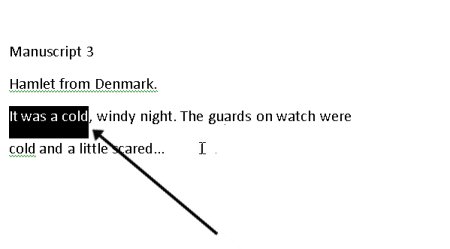
Right-click the selected text and select copy.
Here is a JPEG I created showing the part number is selected (highlighted) and the computer keyboard keys used to copy the part number:

Jim Lombardi
Well you put your mouse point just before the 1st character of the part number and hold down the left mouse button and move the mouse point to the last character of the part number.
Now it be highlighted then release the mouse button, then hold down the Ctrl (control key on the keyboard) and the C key at the same time to copy the highlighted part number.
Now the part number is in the windows operating system clipboard.
If you want to paste the part number into a forum post and insert it into an internet browser search, you just press down the mouse right click button and click on the paste menu item.
Here is microsoft instructions:
on selecting text:
Move the text select/mouse pointer with your mouse to where you’d like to start your selection.
Click and hold down the left mouse button. While doing this, move the mouse across your text to where you’d like the selection to stop. As you move the mouse, the text will be selected.
When you’ve finished your selection, release the left mouse button.
Microsoft illustration of selected text:
Right-click the selected text and select copy.
Here is a JPEG I created showing the part number is selected (highlighted) and the computer keyboard keys used to copy the part number:
Jim Lombardi
Last edited by jimlombardi; Apr 7, 2014 at 09:14 PM.

Junior Member
Joined: Jan 2013
Posts: 27
Likes: 4
From: Virginia
No JEPC Images
Hello,
I've installed twice now...last time explicitly following the instructions in post #54.
I still have no images when I go in the software.
My images folder only has 160 images.
Any idea what I'm doing wrong?
Thanks,
InLucemEdita
I've installed twice now...last time explicitly following the instructions in post #54.
I still have no images when I go in the software.
My images folder only has 160 images.
Any idea what I'm doing wrong?
Thanks,
InLucemEdita
Veteran Member
Joined: Aug 2010
Posts: 2,636
Likes: 1,636
From: Southington CT
Inlucemedita
The illustrations images (diagrams images) are in the C:\JEPC\applications\JEPC\flash\images folder.
Review the screenshot images below and compare their content with your content in your folders and icon.
Looks like I need to fix the installation information by correcting the shortcut instructions and adding the following screen shots:

You can use your browser zoom feature if you want an enlargement of this webpage that you are viewing -
Google Chrome (Customize and Control is located at the top right hand corner - 3 vertical bars - left click on it - then use Zoom feature to enlarge view).
Internet Explore (Use your keyboard - hold down Alt key and hit the X key to open the tools menu list, then put your mouse pointer on the Zoom menu item and select a larger zoom percentage - like 150%).
Jim Lombardi
The illustrations images (diagrams images) are in the C:\JEPC\applications\JEPC\flash\images folder.
Review the screenshot images below and compare their content with your content in your folders and icon.
Looks like I need to fix the installation information by correcting the shortcut instructions and adding the following screen shots:
You can use your browser zoom feature if you want an enlargement of this webpage that you are viewing -
Google Chrome (Customize and Control is located at the top right hand corner - 3 vertical bars - left click on it - then use Zoom feature to enlarge view).
Internet Explore (Use your keyboard - hold down Alt key and hit the X key to open the tools menu list, then put your mouse pointer on the Zoom menu item and select a larger zoom percentage - like 150%).
Jim Lombardi
Last edited by jimlombardi; Apr 18, 2014 at 07:48 AM.


 Help me please.
ok I have tried to get this work 2 times, im no where near a computer expert and I made need an idiots guide. basically I downloaded following instructions and I when I tried to open the programme I got the attached picture come up. I hope its something really simple and you guys can help me. this programme come in very handy for me.
thanks in advance
dave
thanks in advance
dave