


Screen info on a 2007 Xk


Thread Starter
|
Junior Member
Joined: Mar 2011
Posts: 20
Likes: 5
From: Toronto
 Screen info on a 2007 Xk
I am new to this forum. I have owned my 2007 XK since May 2010 and, even though I own many toys like Motorcycles, boats and others nothing; puts a smile on my face like owning and driving this car. Initially I thought it was a temporary feeling like anything new you buy and will go away with time, well 10 months later and my grin is still permanent whenever I am in the car. What a feeling. I thought I was the one that has this feeling, I am glad to see that other Xk owners have the same feeling.
Anyway, the reason for this post is that I have been looking at backup camera options for the XK and ran into a web site that adds video input to the existing screen. they are called NAVTOOL. I am not sure if I can post a link since it may be seen as marketing so if you want to check it out just type in "jaguar XK backup camera" in internet explorer and it will be the first link.
My question is that they have a picture of the screen of the XK and it has information that I don't seem to have in my car. One is the volume level which shows at the bottom of the screen and another is what seems to be picture of a tape which usually indicates a voice mail on your phone and another icon which I cannot make out. Does anyone know if these are things that are available on newer cars than the 07 XK or can I update my software to have them?
I tried to post the picture they have on their web site but I couldn't figure out how to post pictures.
Thanks
Andre
Anyway, the reason for this post is that I have been looking at backup camera options for the XK and ran into a web site that adds video input to the existing screen. they are called NAVTOOL. I am not sure if I can post a link since it may be seen as marketing so if you want to check it out just type in "jaguar XK backup camera" in internet explorer and it will be the first link.
My question is that they have a picture of the screen of the XK and it has information that I don't seem to have in my car. One is the volume level which shows at the bottom of the screen and another is what seems to be picture of a tape which usually indicates a voice mail on your phone and another icon which I cannot make out. Does anyone know if these are things that are available on newer cars than the 07 XK or can I update my software to have them?
I tried to post the picture they have on their web site but I couldn't figure out how to post pictures.
Thanks
Andre

Senior Member
Joined: Jul 2010
Posts: 123
Likes: 23
From: New Zealand
this pic?
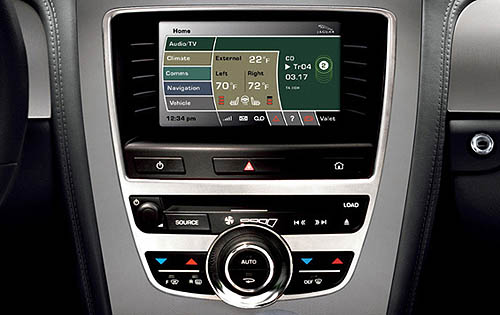
I've been wondering about the aftermarket GVIF boxes myself. It's handy that they connect to the unit in the rear so you don't have to run cables up to the head unit.
My 08 XKR doesn't have the extra symbols either but I wonder if it's signal strength for satellite radio or some other optional gadget.
I've been wondering about the aftermarket GVIF boxes myself. It's handy that they connect to the unit in the rear so you don't have to run cables up to the head unit.
My 08 XKR doesn't have the extra symbols either but I wonder if it's signal strength for satellite radio or some other optional gadget.
Last edited by jallitt; Mar 7, 2011 at 09:35 PM.
Thread Starter
|
Junior Member
Joined: Mar 2011
Posts: 20
Likes: 5
From: Toronto
Thats the pic I am referring to. Thanks for posting. Also notice where it is says Audio/TV instead of Audio only. I got my dealer to install the Jaguar IPOD addon. When they did that they added an option for AUX when I select Audio.

Senior Member
Joined: Jul 2008
Posts: 180
Likes: 21
From: South Florida
I checked out Navtool. Although it does use the existing screen on the XK there is a catch. You must have the Nav screen displaying for it to work. According to Navtool you must manually switch to the Nav screen in order to see the rear camera view. This is because Navtool intercepts the Nav video display and replaces it with the rear camera display. This means that you must select the Nav screen and then "Agree" to the screen prompt before you can see the rear view. To me this is not a very elegant solution.
Senior Member
Joined: Jul 2008
Posts: 180
Likes: 21
From: South Florida
The 3 icons at the bottom of the screen are for signal strength, battery life and voice mail. All are for the Bluetooth phone connection. These are not supported for all phones. Refer to page 122 of the Owner's manual and the Jaguar Bluetooth support web page for your specific phone.
Thread Starter
|
Junior Member
Joined: Mar 2011
Posts: 20
Likes: 5
From: Toronto
I checked out Navtool. Although it does use the existing screen on the XK there is a catch. You must have the Nav screen displaying for it to work. According to Navtool you must manually switch to the Nav screen in order to see the rear camera view. This is because Navtool intercepts the Nav video display and replaces it with the rear camera display. This means that you must select the Nav screen and then "Agree" to the screen prompt before you can see the rear view. To me this is not a very elegant solution.
Thanks for the info on the other icons. I did check the Jaguar bluetooth web site and my phone will not have those icons with my 2007 XK.

Junior Member
Joined: Oct 2012
Posts: 23
Likes: 2
From: Paris
there is a catch. You must have the Nav screen displaying for it to work. According to Navtool you must manually switch to the Nav screen in order to see the rear camera view. This is because Navtool intercepts the Nav video display and replaces it with the rear camera display. This means that you must select the Nav screen and then "Agree" to the screen prompt before you can see the rear view. To me this is not a very elegant solution.
-the nav button (or the switch provided) is used to switch from nav to input1, 2, 3
-the backup camera is plugged to a 4th video input, that is automatically switched on when there is 12v on the grey wire. So if you plug this wire to a reverse bulb, it will switch automaticcaly when you put the gear in reverse
But maybe you're correct, and if so, I apologise !!!
Last edited by pierbout; Oct 24, 2012 at 09:42 AM.
Trending Topics
Junior Member
Joined: Oct 2012
Posts: 23
Likes: 2
From: Paris
- the OEM backup video input of my car will be put in the trunk if you want to retrofit it.
- But the video input that I added must be placed behind or near the screen, as the cable is only 5Ocm long. I actually put it behing the glove box (you must unmount the glove box to access it)
I guess it's a matter of plug shape, or signal loss, depending on the systems.
If you've got the choice, it's easyer to add it in the trunk: more space and easyer access.I guess that's why they wrote it in red.
Last edited by pierbout; Oct 24, 2012 at 10:05 AM.

Veteran Member
Joined: Dec 2007
Posts: 1,466
Likes: 264
From: Atlanta
There is no way I would "plug" anything into my NAV computer, and I doubt you could do this anyway.
This is from the GVIF website:
"The NV_GVIF_LR is an externally wired plug-and-play interface that is installed inline of your vehicles GPS computer and LCD screen; it works simply by interrupting the video signal from your GPS computer whenever you select the "Input" button on the IR remote that is provided. When your GPS is displayed simply turn on your external video source and activate the input on the remote control and the GPS video image is replaced by your video source, once you turn it back off, the GPS image is displayed once again. "
Their reference to the "GPS" is really a reference to the computer/functionality which drives the screen. It isn't referring to a component of the overall functionality provided/displayed on the screen. Think about it - the GPS, heated seats, and all the other functionality displayed on the screen is "managed/controlled" by a single computer driving the display. There aren't 5 or 6 or 7 physically different video inputs into the the screen.
Also, according to the tech specs, by applying +5VDC to the I-DRV pin of teh power cable you can switch modes automatically - ie, no pressing of input button on remote.
SOOOO, the module interface/connection is placed *between* the output of the computer which drives the touchscreen and the touchscreen itself. Consquently, you should be able to apply +5VDC on the I-DRV pin and automatically switch display modes, interrupting the display without touching anything. I can see easily how to do this...provided the nav interface functions technically as they describe.
This is from the GVIF website:
"The NV_GVIF_LR is an externally wired plug-and-play interface that is installed inline of your vehicles GPS computer and LCD screen; it works simply by interrupting the video signal from your GPS computer whenever you select the "Input" button on the IR remote that is provided. When your GPS is displayed simply turn on your external video source and activate the input on the remote control and the GPS video image is replaced by your video source, once you turn it back off, the GPS image is displayed once again. "
Their reference to the "GPS" is really a reference to the computer/functionality which drives the screen. It isn't referring to a component of the overall functionality provided/displayed on the screen. Think about it - the GPS, heated seats, and all the other functionality displayed on the screen is "managed/controlled" by a single computer driving the display. There aren't 5 or 6 or 7 physically different video inputs into the the screen.
Also, according to the tech specs, by applying +5VDC to the I-DRV pin of teh power cable you can switch modes automatically - ie, no pressing of input button on remote.
SOOOO, the module interface/connection is placed *between* the output of the computer which drives the touchscreen and the touchscreen itself. Consquently, you should be able to apply +5VDC on the I-DRV pin and automatically switch display modes, interrupting the display without touching anything. I can see easily how to do this...provided the nav interface functions technically as they describe.
Last edited by rscultho; Oct 24, 2012 at 11:54 AM.

Thread
Thread Starter
Forum
Replies
Last Post
zdrapec
PRIVATE For Sale / Trade or Buy Classifieds
0
Sep 25, 2015 05:49 AM

Currently Active Users Viewing This Thread: 1 (0 members and 1 guests)