


How to: Post pictures


Thread Starter
|
Veteran Member
Joined: Feb 2007
Posts: 3,780
Likes: 45
 How to: Post pictures
Start by going to a picture hosting site. There are plenty to use, but I prefer Photobucket .com since I can store like 10,000 photos and hours of video.
I will be registering my wife as I do this How To.
http://photobucket.com/register.php?link=topmenu
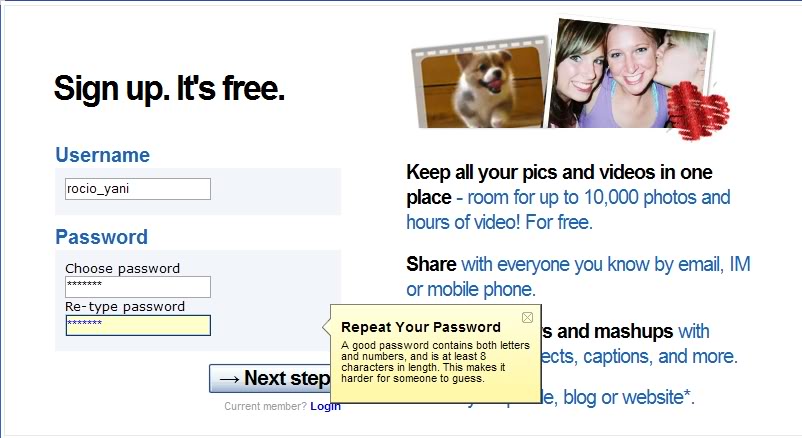
Step one: Register by using a unique name and enter the password twice. Hit next step.
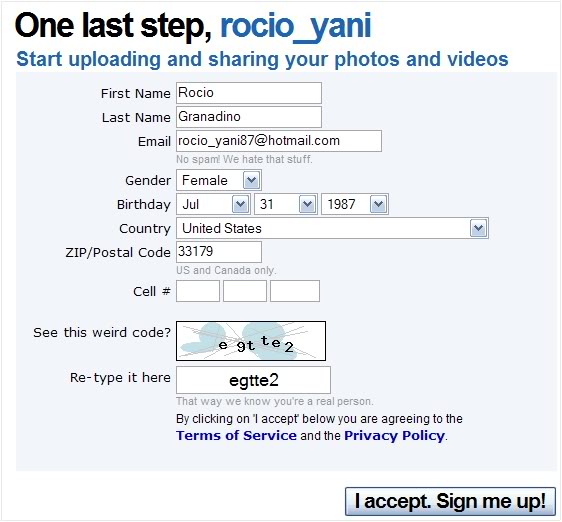
Step two: Fill out the form and click "I accept. Sign me up!"(Disclaimer: Read the "Terms of Service" and "Privacy Policy")
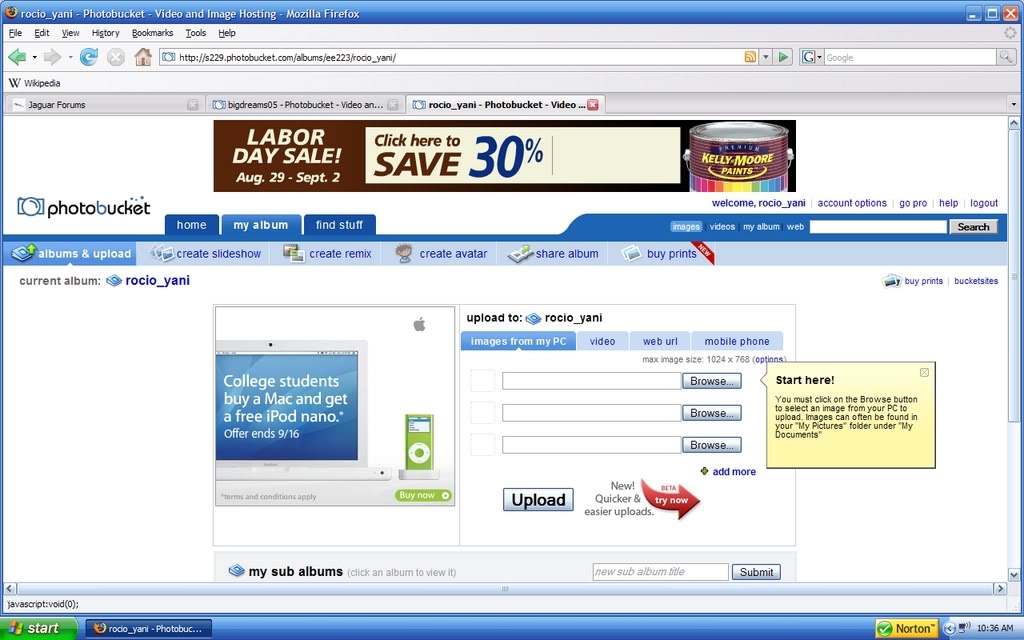
Step three: You are now ready to upload pictures. Click the "browse" button and find your pictures on your PC(or mac..LOL). Upload them
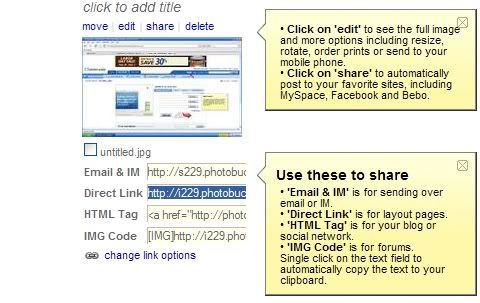
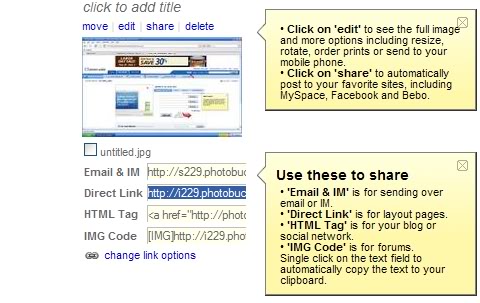
Step Four: Once your picture has been uploaded you are ready to post it on Jaguarforums.com. Look at the picture below. As you can see, there are four different links that you can copy and paste. As a matter of fact, there is even one with the image tags on the end. However, here on Jaguarforums.com, the image tags can't be capitalized, so you must write them yourself. As you can see, you copy the highlighted portion of the link, where it says "direct link", and you will put it in the post as follows.
[img]Here goes your url link[/img]
If you paste the url link in between [img] and [/img] tags, you should get a picture to post. If you don't, PM me(or any other mod) for more help.
*Just for demonstrative purposes, I copied and pasted the link given on Photobucket with the image tags already added and for some reason it worked. If it doesn't for you, just do it the other way.* (I know for a fact it didn't work for BuckMR2 in his signature)
I will be registering my wife as I do this How To.
http://photobucket.com/register.php?link=topmenu
Step one: Register by using a unique name and enter the password twice. Hit next step.
Step two: Fill out the form and click "I accept. Sign me up!"(Disclaimer: Read the "Terms of Service" and "Privacy Policy")
Step three: You are now ready to upload pictures. Click the "browse" button and find your pictures on your PC(or mac..LOL). Upload them
Step Four: Once your picture has been uploaded you are ready to post it on Jaguarforums.com. Look at the picture below. As you can see, there are four different links that you can copy and paste. As a matter of fact, there is even one with the image tags on the end. However, here on Jaguarforums.com, the image tags can't be capitalized, so you must write them yourself. As you can see, you copy the highlighted portion of the link, where it says "direct link", and you will put it in the post as follows.
[img]Here goes your url link[/img]
If you paste the url link in between [img] and [/img] tags, you should get a picture to post. If you don't, PM me(or any other mod) for more help.
*Just for demonstrative purposes, I copied and pasted the link given on Photobucket with the image tags already added and for some reason it worked. If it doesn't for you, just do it the other way.* (I know for a fact it didn't work for BuckMR2 in his signature)






Joined: Jun 2007
Posts: 170
Likes: 17
From:
RE: How to: Post pictures
Nice post.
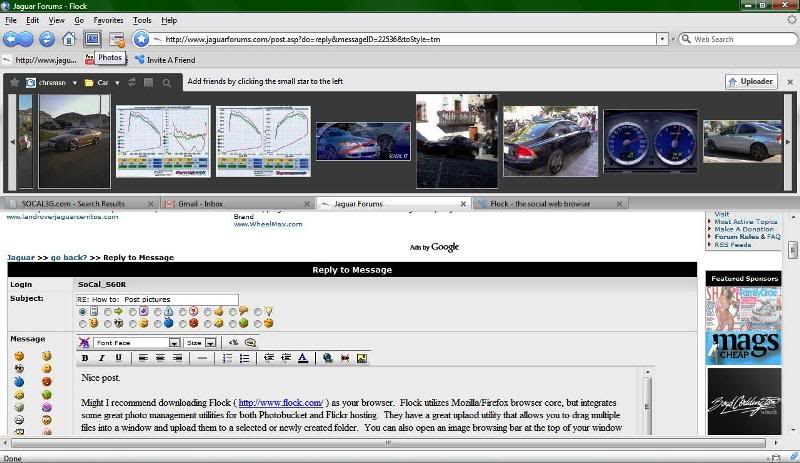
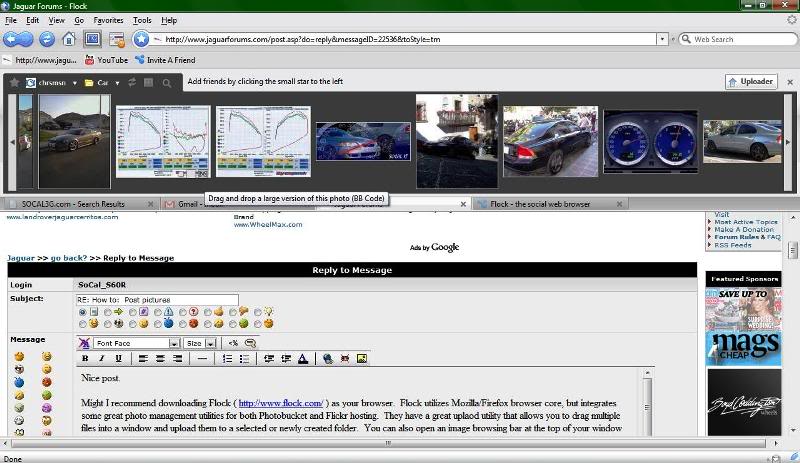
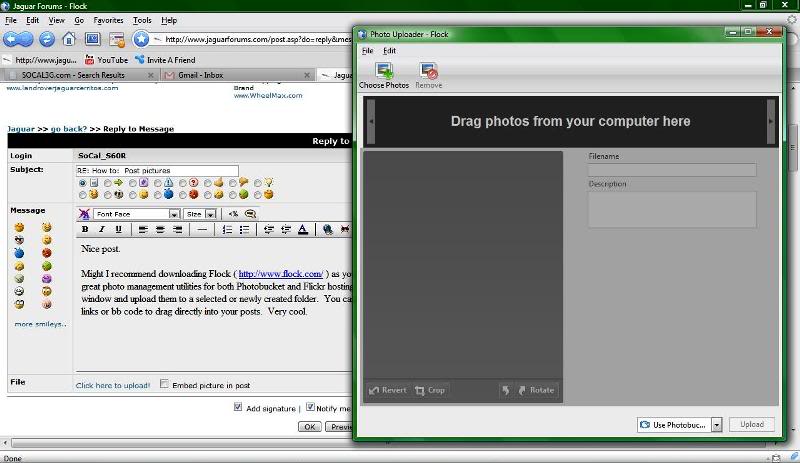
Might I recommend downloading Flock ( http://www.flock.com/ ) as your browser. Flock utilizes Mozilla/Firefox browser core, but integrates some great photo management utilities for both Photobucket and Flickr hosting. They have a great uplaod utility that allows you to drag multiple files into a window and upload them to a selected or newly created folder. You can also open an image browsing bar at the top of your window and select image links or bb code to drag directly into your posts. Very cool.
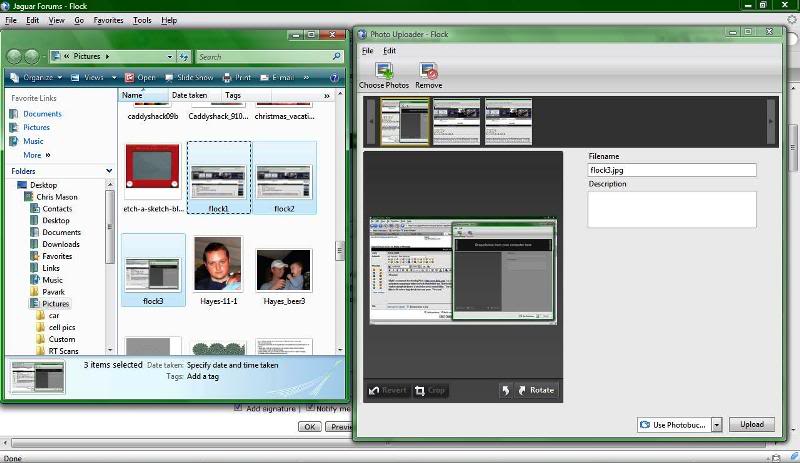
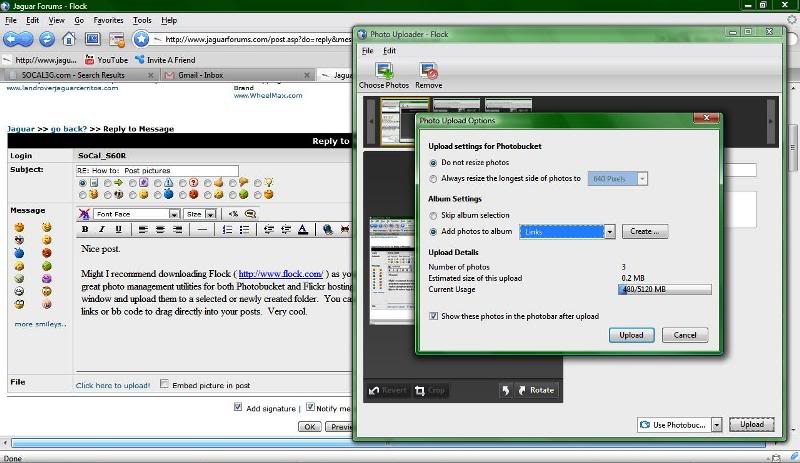
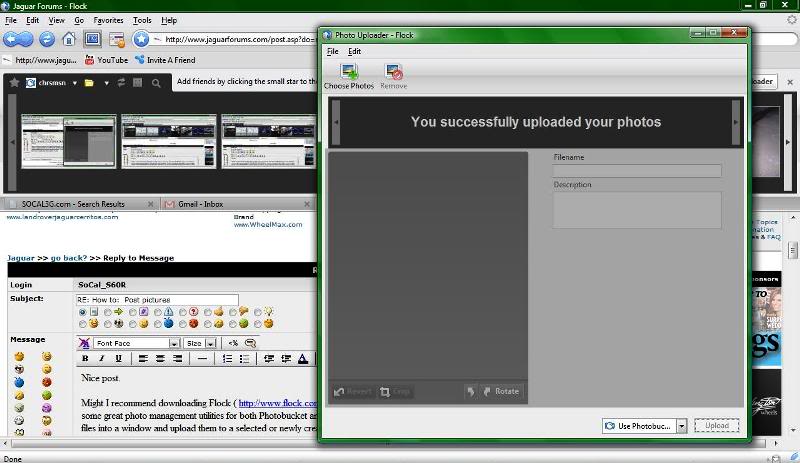
Might I recommend downloading Flock ( http://www.flock.com/ ) as your browser. Flock utilizes Mozilla/Firefox browser core, but integrates some great photo management utilities for both Photobucket and Flickr hosting. They have a great uplaod utility that allows you to drag multiple files into a window and upload them to a selected or newly created folder. You can also open an image browsing bar at the top of your window and select image links or bb code to drag directly into your posts. Very cool.
Joined: Jun 2007
Posts: 170
Likes: 17
From:
RE: How to: Post pictures
If you don't like that...Picasa ( http://picasa.google.com/ ) is now owned by Google and has a great little interface for importing pics from your camera, editing them, and they provide a hosting solution as well, with a quick upload. I use it for import, editing, and managing my files on my computer, but I don't use the hosting service. I hear it's just as good as the others though.

Member
Joined: Dec 2007
Posts: 30
Likes: 3
From: Central Florida
RE: How to: Post pictures
I mean this in the nicest way but....Christ! Are you guys jag nuts or webmasters 
Looks like I have some learning to do....on both.
Thanks for all the tips.
All pass them on to my IT Manager (17yr old son
S.
Edit: I'm his 12 yr. old son, my dad is lame. I just toured him through the process of Imageshack.us and Tinypic.com.
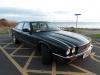
Check out his car, it's pretty RAD.
Here's the pictureeeeee:
Looks like I have some learning to do....on both.
Thanks for all the tips.
All pass them on to my IT Manager (17yr old son
S.
Edit: I'm his 12 yr. old son, my dad is lame. I just toured him through the process of Imageshack.us and Tinypic.com.
Check out his car, it's pretty RAD.
Here's the pictureeeeee:


Trending Topics
Guest
Posts: n/a
RE: How to: Post pictures
what the *****! I still cant post pics on posts. I just signed up for the photobucket thing and the code it gives you to post inside forums like this doesnt work. Is it because I'm using a Mac?? this computer is less than a year old but I know Macs don't always sync with harmony with other programs since I've had oddball problems like this before where pictures tend to be a common issue when I try uploading them. I can't even upload an avatar or profile pic, it always comes up error since I first joined this forum. Am I missing something or what?? lol

Senior Member
Joined: Jun 2008
Posts: 136
Likes: 13
From: ST.LEONARD,QC,CANADA
RE: How to: Post pictures
HI, just wanted to say that i am following the instructions for photobucket ,but m still not able. it has become very fustrating. really joined this great forum to exchange with other jasg lovers. but hard to do when u cant post. also how do we post a pix in our signature?
thanx
thanx


Veteran Member


Joined: Mar 2007
Posts: 11,393
Likes: 649
From: Planetarium
First off , go to your user cp
You will see Control Panel to the left hand side and see settings and options . Click on Edit Options
Then , you will see another page and just go to the bottom of the page where says miscallenous options . See "Message Editor Interface" and choose Enhanced Interface .
Is that all ? Nope, then when posting a message you must reply to thread not just quick reply button
You will see Control Panel to the left hand side and see settings and options . Click on Edit Options
Then , you will see another page and just go to the bottom of the page where says miscallenous options . See "Message Editor Interface" and choose Enhanced Interface .
Is that all ? Nope, then when posting a message you must reply to thread not just quick reply button

Veteran Member
Joined: Mar 2007
Posts: 11,393
Likes: 649
From: Planetarium

And choose this "blued one "
Once this has been done, when you reply in future you will have more options available icluding the little " yellow envelope" graphic that when clicked opens a drop box. Once this drop box opens you can paste your link into it and your pictures will appear!

Senior Member
Joined: Dec 2008
Posts: 108
Likes: 7
From: FL
The allowed limits are 500 x 100 an 9.8 kb
I tried uploading a similar size to yours 261 x 200 and 20kb and it automatically reduced it to 131 x 100 and 4.75 kb.
I even tried saving your exact image and uploading it which also did not work
I noticed yours is a linked image I copied your image and uploaded it to photobucket and tried to link it which also did not work. It says remote file is too large. I noticed my signature permissions does not allow image code.
Also Avatars are only 80 x 80 now use to be somewhere around 145 x 145 I believe. O well I guess you cant have everything for free.
I tried uploading a similar size to yours 261 x 200 and 20kb and it automatically reduced it to 131 x 100 and 4.75 kb.
I even tried saving your exact image and uploading it which also did not work
I noticed yours is a linked image I copied your image and uploaded it to photobucket and tried to link it which also did not work. It says remote file is too large. I noticed my signature permissions does not allow image code.
Also Avatars are only 80 x 80 now use to be somewhere around 145 x 145 I believe. O well I guess you cant have everything for free.
Last edited by hrand1987; Feb 5, 2009 at 03:22 PM.

Veteran Member
Joined: Jul 2007
Posts: 1,180
Likes: 20
From: GNV, Florida & HOU, Texas
Lol i got mine to work for now but it would be nice to be able to use same size as before, im sure all your admin's are trying to still work out the kinks so i understand
im also one of those people that doesnt like change, im sure this new layout is great and will grow to love it, maybe one of you guys did a write up on all the benefits, if not it would be nice as i was puzzled to see it had happend!
im also one of those people that doesnt like change, im sure this new layout is great and will grow to love it, maybe one of you guys did a write up on all the benefits, if not it would be nice as i was puzzled to see it had happend!
